All newsUpdate
Lectur has a new look
We redesigned every screen in Lectur so each page opens on what you came to do. Your courses, grades and progress are all still there.
4 min read
Also in French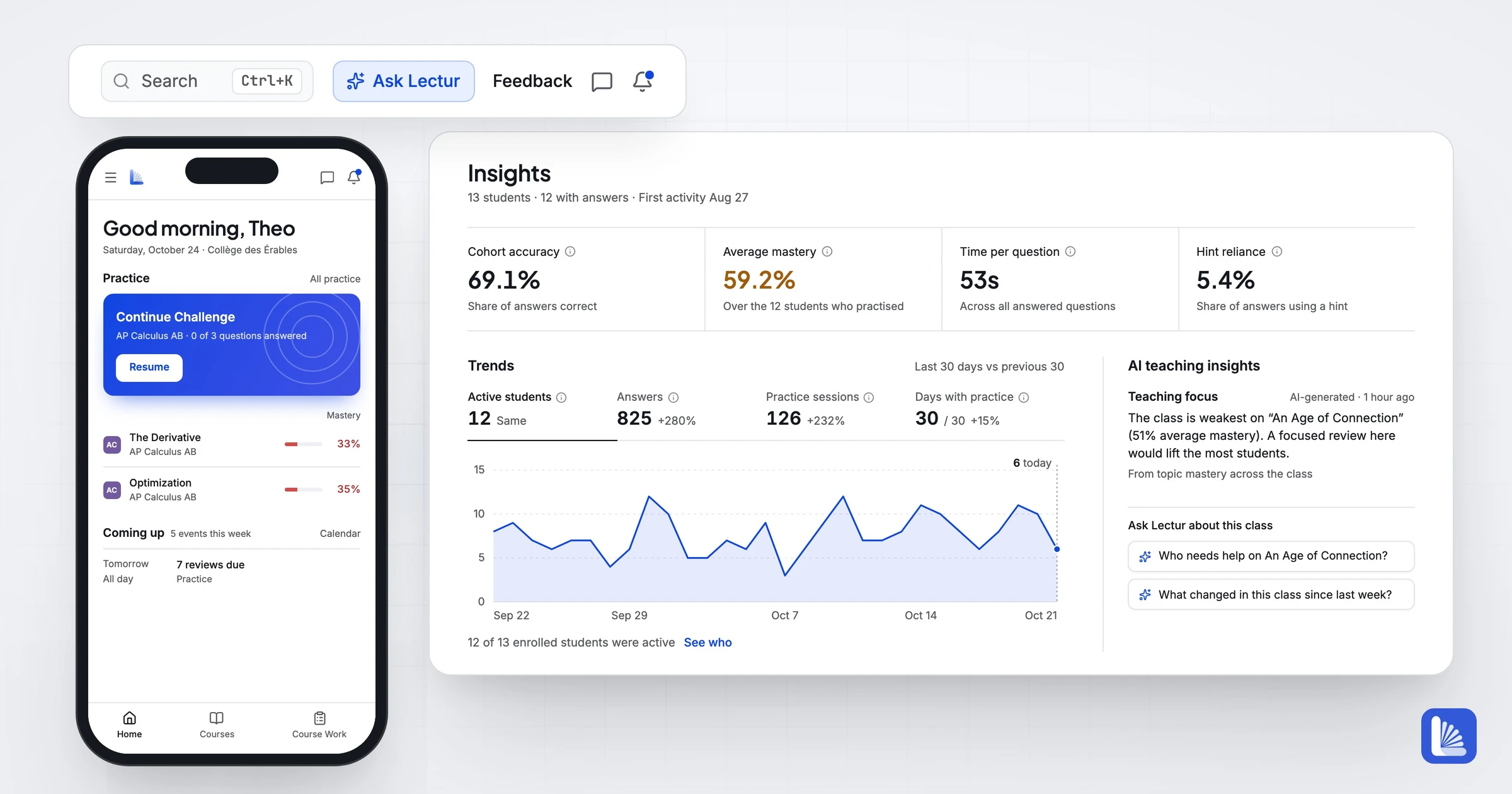
We redesigned every screen in Lectur. Your courses, grades, mastery and streaks are all still there, and you have nothing to set up.
A cleaner design
We wanted Lectur to feel lighter and more modern. The old pages stacked cards, number tiles and coloured icons, so everything looked equally important. Each page now opens on what you came to do, with plain sections and simple lists below it.
Most of Lectur is now white and grey. We kept colour for what it should tell you: how well a student knows a topic, which course you're looking at, and work that's overdue or due soon.
What moved
| Before | Now |
|---|---|
| Dashboard | Home |
| My Courses | Courses |
| The companion, behind a sparkle icon | Ask Lectur, a button in the top bar |
| Release and due date labels on each curriculum item | The item's ⋯ menu |
| Course Work, grouped by status | A schedule by week, with a full table view |
| Grading setup: terms, categories and weighting | The Grading tab of the course's settings |
| Notification settings, on your profile page | Settings, then Notifications |
| Sign-in methods, two-step verification and your devices | Settings, then Security |
Home starts with today's work
A teacher's Home opens on Waiting on you: submissions to grade, students newly flagged this week and your next live class. Below it, your courses show what's left to grade and what's due next.
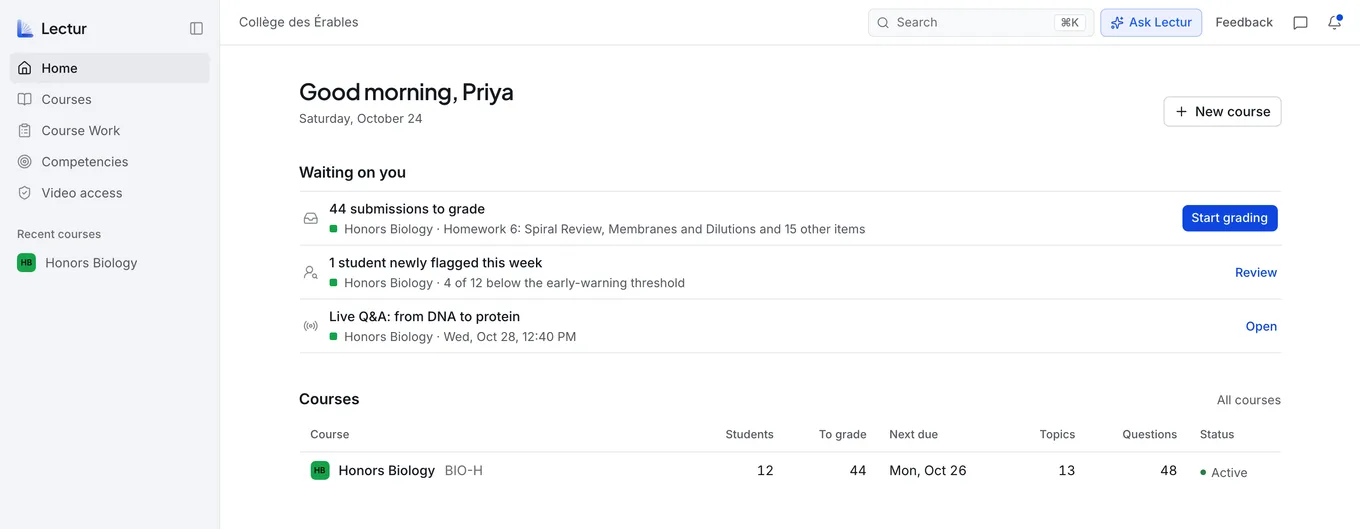
A teacher's Home.
On a course home, the number of submissions to grade used to sit on the last of four number tiles. It's now the page's main button.
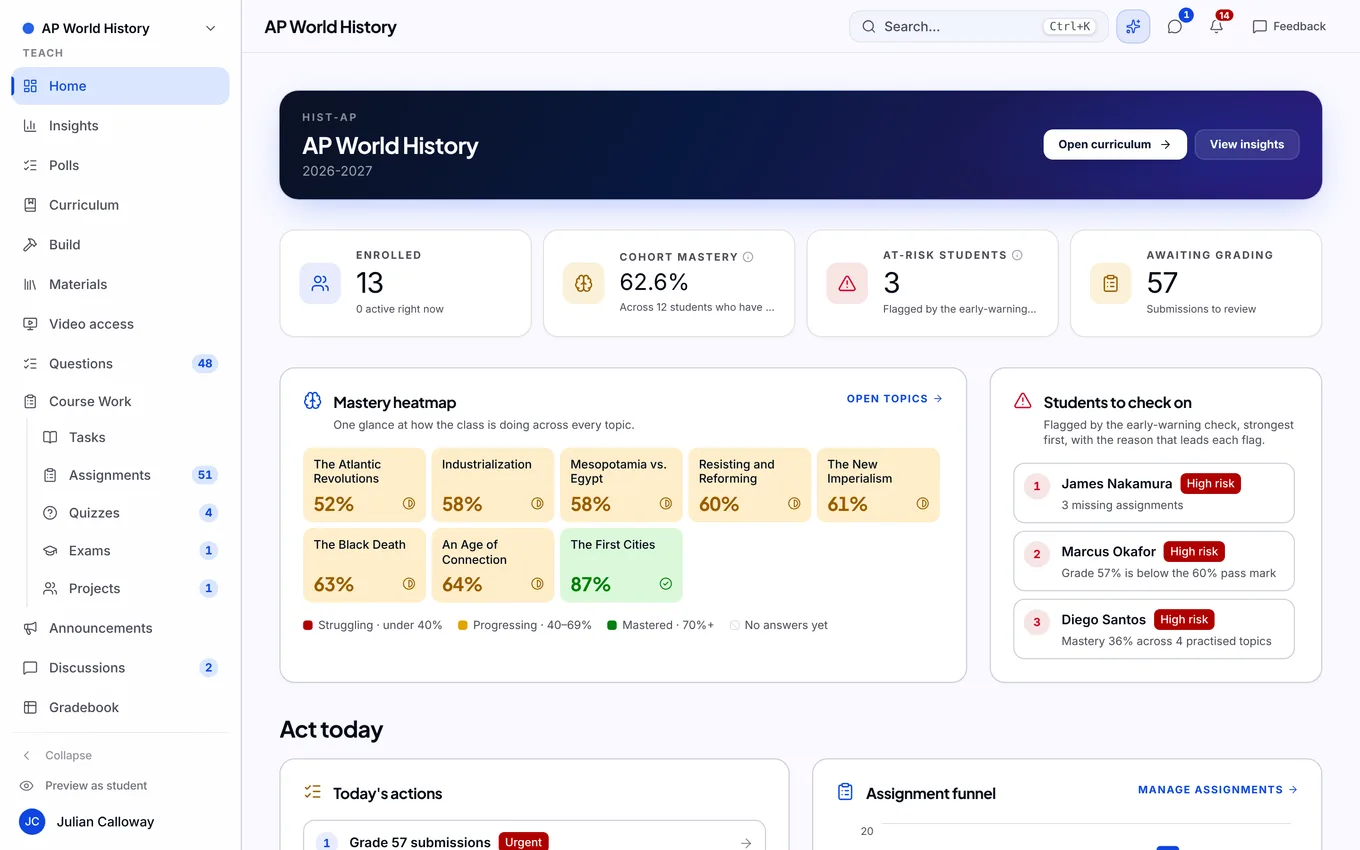
Before: the old course home.
A student's Home opens on practice, starting with the topics that need work.
Course Work by week
Course Work is now a schedule: this week, next week and later. Each piece of work shows how many students handed it in and how many submissions you still have to grade.
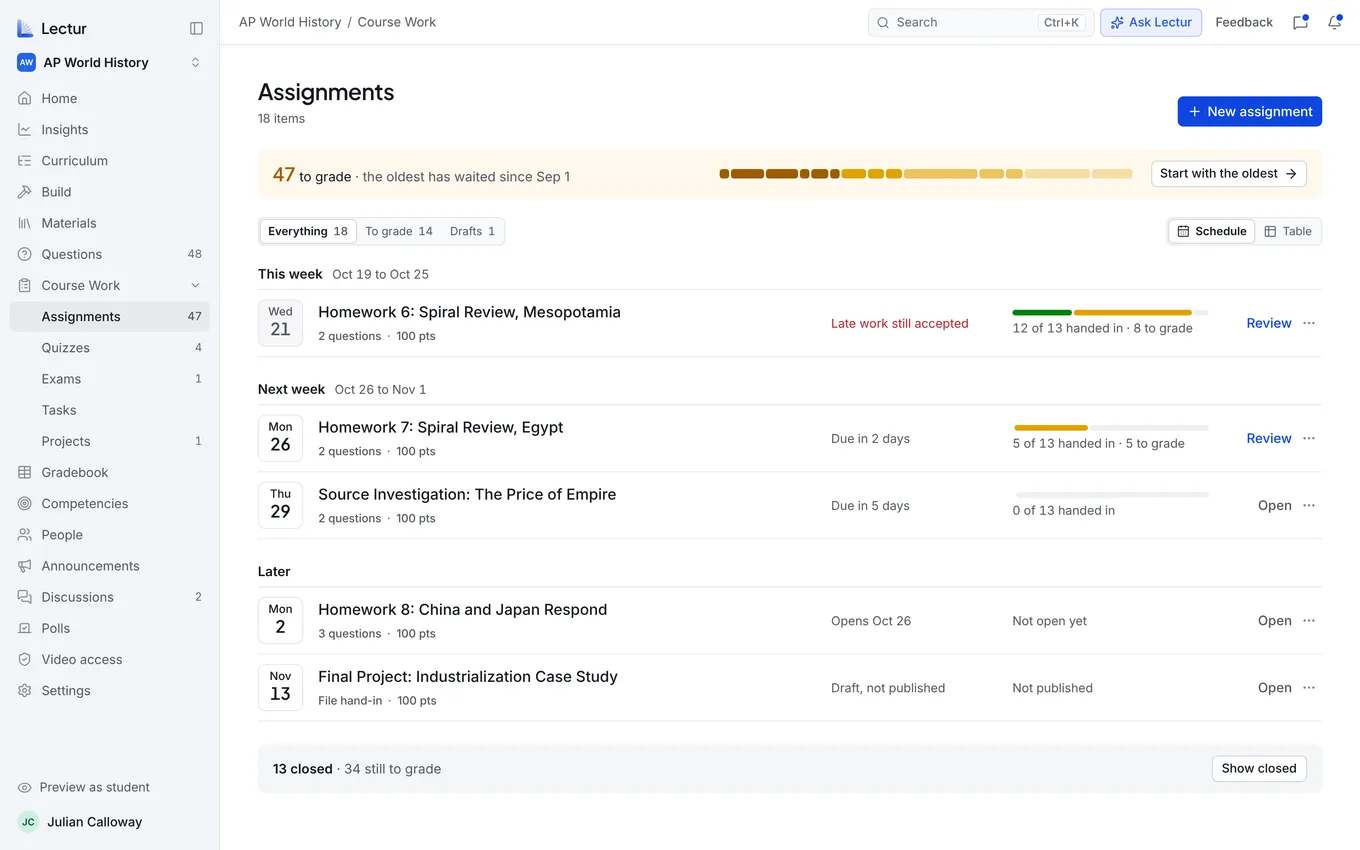
Course Work, by week.
Ask Lectur
Lectur's AI help is now called Ask Lectur, and teachers and students find it at the top of the page. On a computer it opens beside the page, so the lesson stays in view while you ask about it. Parents can open it from their child's page.
Grading on one page
On a wide screen, grading fits on one page: the submissions on the left, the student's answers in the middle, your marks and feedback on the right. Accept or dismiss the marks Lectur suggests, then press Publish grade to send the grade and your feedback to the student.
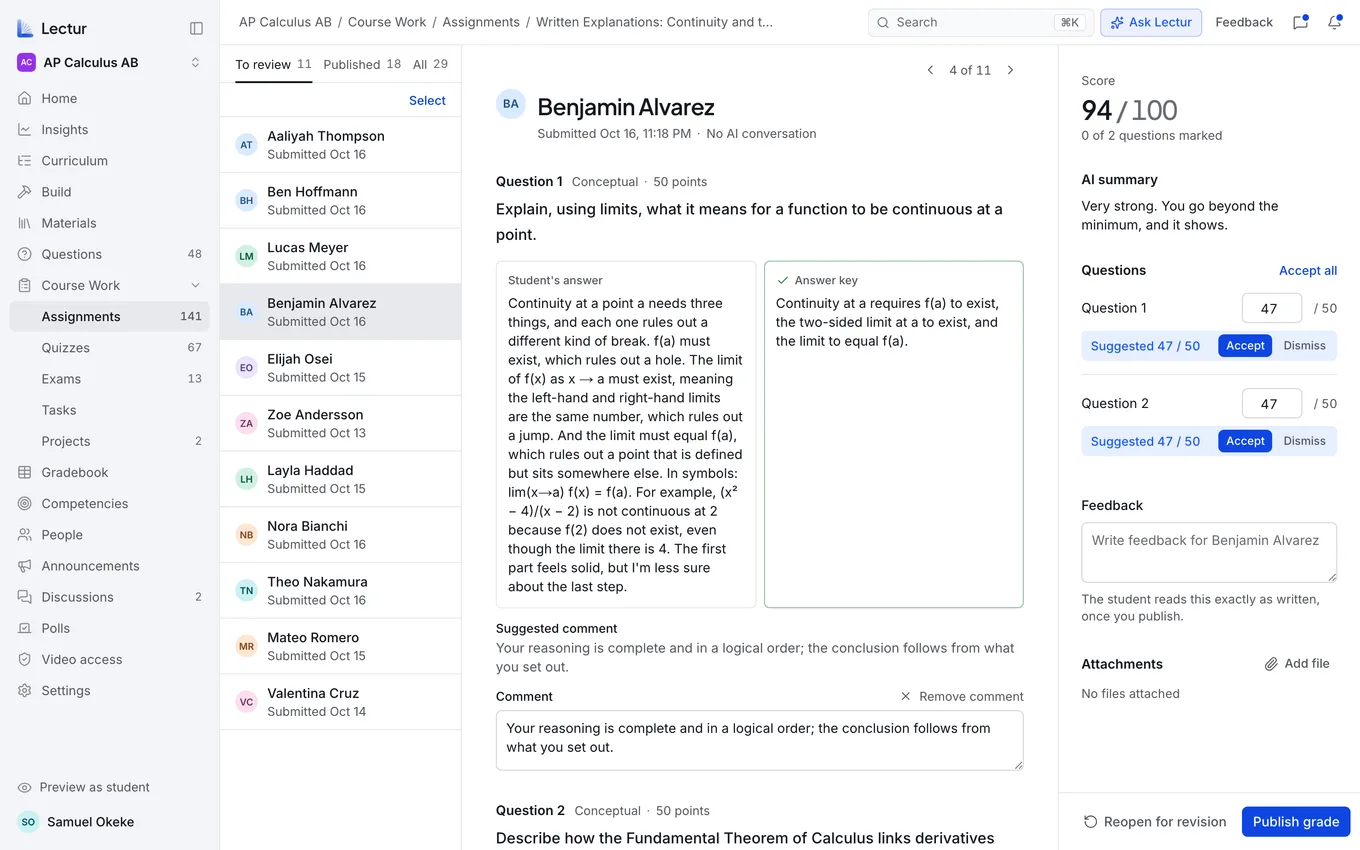
Grading, with Lectur's suggested marks on the right.
On your phone
Students get a tab bar for Home, Courses and Course Work. It hides during quizzes, practice and live classes. Search, Ask Lectur and Feedback are in the menu.
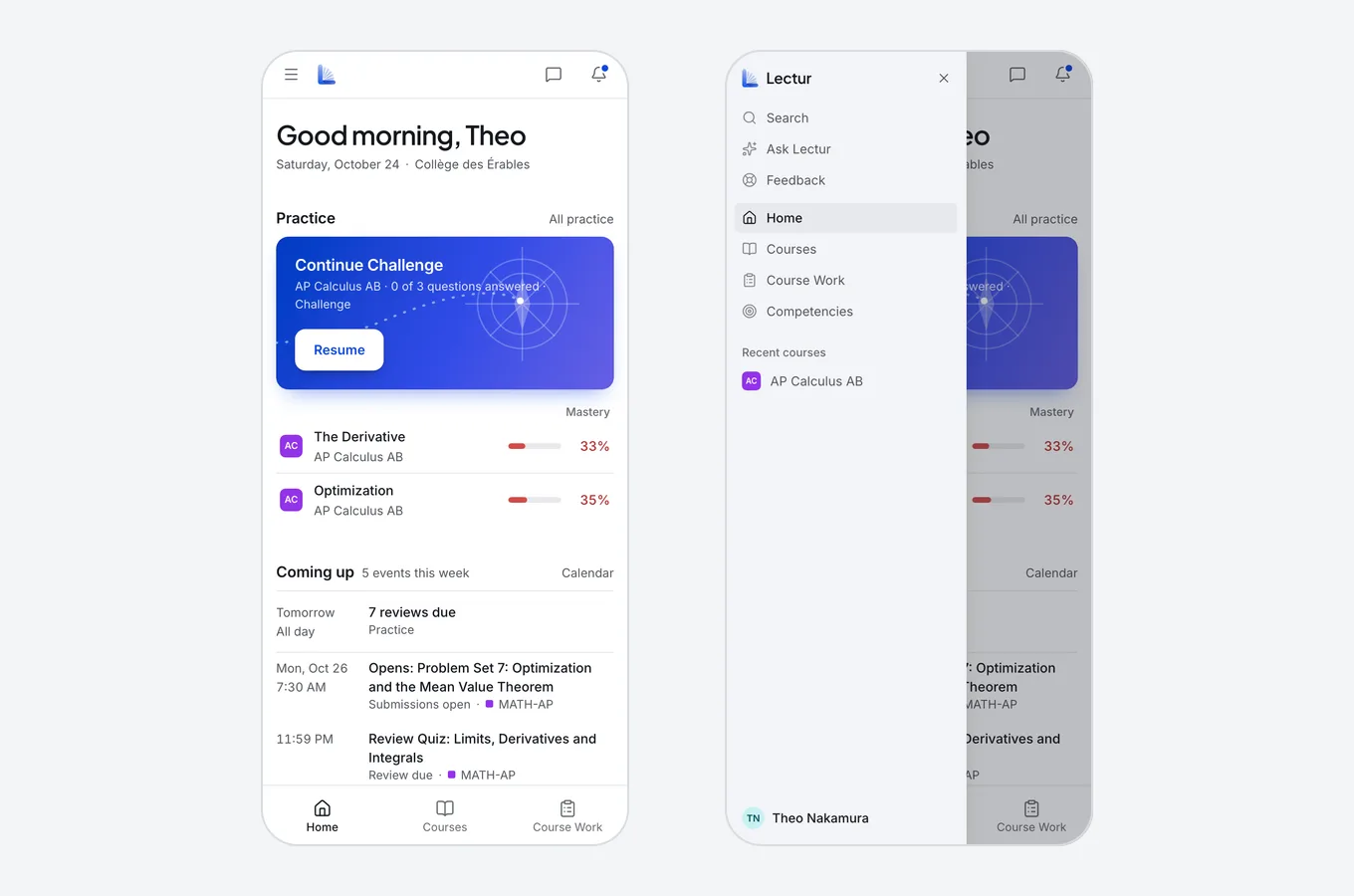
A student's Home on a phone, and the menu.
For families
We rebuilt the family page. Each child's page opens with a short summary, then their grades and the topics to practice. Parents with more than one child switch between them at the top of the page.
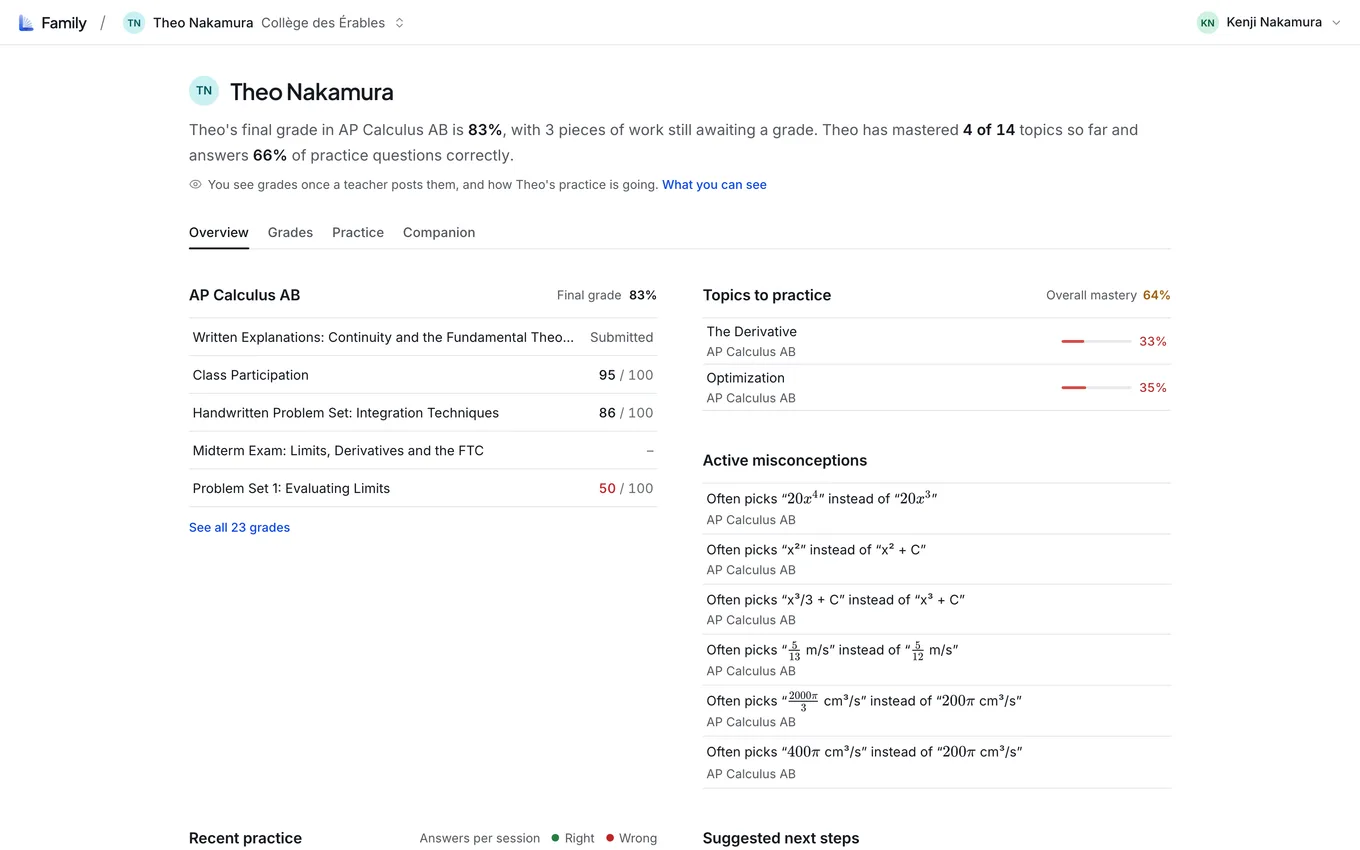
A parent's view of their child.
Also new
- The gradebook looks like a plain spreadsheet, and a final grade turns red only under your pass mark.
- Students pick up an unfinished practice session with Carry on. Work that closed before they handed it in goes under Missed, where they can still open it.
- Directors start on the courses that need attention.
- Dark mode is rebuilt in dark greys, with the same colours for mastery and courses.
Can't find something?
Open Ask Lectur and ask where it went, or press Feedback at the top of the page. On a phone, it's in the menu. You can also write to us at contact@lectur.ca.
New to Lectur? Book a demo at lectur.net.